
Bottleneck Calculator 2026 Check CPU & GPU Performance Balance
Test your computer’s real performance potential with our advanced PC analyzer tool. Compare CPU and GPU power to detect system limitations, FPS drops, and hardware imbalance issues. Perfect for gamers, creators, and PC builders who want smoother performance. Fast, accurate, and beginner friendly.
Configure Your Setup
Select your hardware specs for an accurate bottleneck analysis
Your System Report
System is balanced
Balanced System
Run the calculator to see your analysis.
📊 FPS Estimation Across Resolutions
| Metric | Your CPU | Your GPU | Assessment |
|---|---|---|---|
| Run the calculator to see data | |||
Smart Recommendations
Run the Calculator
Select your hardware and click Calculate to get personalized recommendations.
Estimated Game Performance
What Is a Bottleneck Calculator?
A bottleneck calculator is a free online tool that analyzes the performance balance between your PC’s key hardware components primarily the CPU (central processing unit), GPU (graphics processing unit), and RAM (random access memory). Based on real benchmark data and component-specific scoring logic, our PC bottleneck calculator identifies which part of your system is limiting overall performance and by how much.
When your CPU and GPU are mismatched, one component ends up waiting for the other. The result is lower FPS, stuttering, frame drops, and wasted hardware potential. Our bottleneck checker eliminates the guesswork by giving you an exact bottleneck percentage, a system health score, estimated FPS range, and step-by-step upgrade recommendations — all in seconds, completely free.
Think of it like a four-lane highway that suddenly narrows to two lanes at a bridge. No matter how fast traffic was moving before, everything slows at that tight point. In your PC, that tight point is your bottleneck. Widening it means upgrading the part that is holding everything back.
How to Use the Bottleneck Calculator
Select Your CPU
Choose your processor from our database. We support Intel Core Ultra, Intel 12th/13th/14th Gen, AMD Ryzen 9000, AMD Ryzen 7000, AMD Ryzen 5000, and older generation CPUs. If you are planning a build, select the CPU you are considering buying.
Select Your GPU
Pick your graphics card. Our database includes NVIDIA RTX 50 Series (2025–2026), RTX 40 Series, RTX 30 Series, AMD RX 9000 Series, RX 7000 Series, RX 6000 Series, and more.
Set Resolution and Use Case
Select your target gaming resolution — 1080p, 1440p, or 4K. Then choose your primary use case: Competitive Gaming, AAA Gaming, Streaming, or Productivity. This makes results significantly more accurate than using a generic default.
Configure RAM and Overclock Options
Choose your RAM size (8GB, 16GB, 32GB, 64GB) and RAM speed (DDR4-3200, DDR5-6000, DDR5-7200). Toggle CPU or GPU overclock if applicable.
Click Calculate Bottleneck
Hit the Calculate Bottleneck button. The tool instantly processes your inputs and returns your bottleneck percentage, system balance score, estimated FPS per game, and personalized upgrade recommendations.
How to Interpret Your Bottleneck Calculator Results
| Bottleneck % | Status | What to Do |
|---|---|---|
| 0–10% | Perfect balance | No upgrade needed |
| 10–20% | Minor bottleneck | Monitor; consider upgrade if FPS stability matters |
| 20–30% | Moderate bottleneck | Upgrade the limiting component |
| 30%+ | Severe bottleneck | Upgrade strongly recommended |
A result of 0% is impossible — there is always a minor imbalance. Anything under 10% is considered an excellent match. Above 30% means you are likely losing 20–40% of your hardware’s potential every session.
System Balance Score
The system balance score shows how efficiently your hardware is being used as a complete unit. A score of 78% means roughly 22% of your total hardware capability is being wasted due to an imbalance. You can improve this by enabling XMP/EXPO in BIOS, switching to dual-channel RAM, or upgrading the weaker component.
Estimated FPS Range
Rather than showing best-case benchmark numbers, our fps calculator delivers a realistic FPS range based on your actual configuration — including resolution, RAM setup, use case, and hardware imbalance. This reflects what you will genuinely experience in-game, not theoretical maximums.
Limiting Factor
The results clearly show whether your CPU or GPU is the primary constraint, along with the component name and score. This tells you exactly which upgrade will deliver the most performance improvement per dollar.
What Is a PC Bottleneck?
A PC bottleneck occurs when one component in your system is significantly slower than the others, preventing your PC from operating at its full potential. This is not always about age or quality — even brand-new hardware can bottleneck if components are mismatched.
Types of PC Bottlenecks
1. CPU Bottleneck
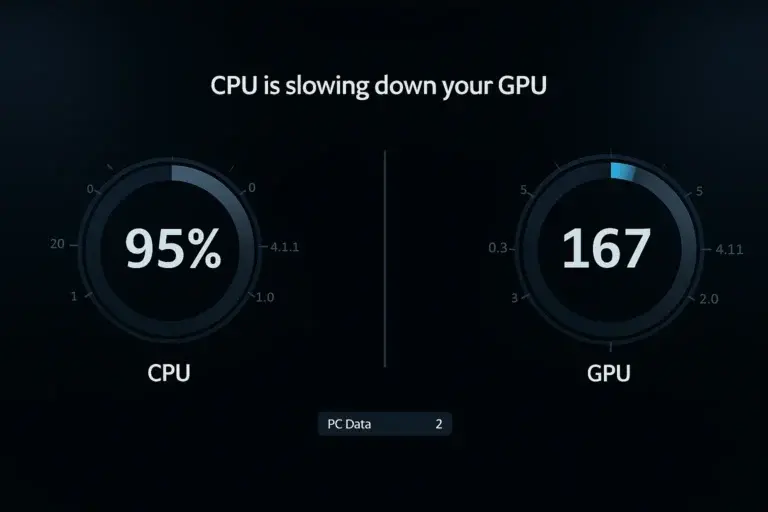
A CPU bottleneck happens when the processor cannot deliver draw calls and game logic to the GPU fast enough. The GPU then sits underutilized — often below 75% usage while the CPU maxes out at 100%. This is most common at 1080p and high refresh rates (144Hz, 240Hz).
Games that rely heavily on AI, physics, and open-world simulation — such as Warzone, Cities: Skylines, Cyberpunk 2077, and Escape from Tarkov — are the most affected.
Common Causes and Solutions:
| Cause | Why It Causes a Bottleneck | Solution |
|---|---|---|
| Low core/thread count | Cannot handle parallel game tasks | Upgrade to a CPU with at least 6 cores and 12 threads |
| Low clock speed or weak IPC | Limits per-frame processing | Choose a CPU with strong single-core performance |
| Thermal throttling | CPU slows down to prevent overheating | Improve cooling; replace thermal paste |
| Background processes | CPU resources eaten by unused apps | Disable startup programs and background tasks |
| Small CPU cache | Increases memory access latency | Upgrade to a newer CPU architecture with more L3 cache |
2. GPU Bottleneck
A GPU bottleneck occurs when the graphics card cannot render frames fast enough for the CPU’s output. GPU usage reaches 95–100% while CPU usage stays below 60%. This is normal and expected at 1440p and 4K with Ultra settings — it means your GPU is being fully utilized.
Common Causes and Solutions:
| Cause | Why It Causes a Bottleneck | Solution |
|---|---|---|
| Outdated or weak GPU | Cannot handle modern rendering workloads | Upgrade to RTX 4070 Super, RTX 5070, or RX 7800 XT |
| Low VRAM | Limits high-resolution texture rendering | Choose GPU with 8GB+ VRAM; 12GB+ for 4K |
| Ultra graphics settings | Overwhelms GPU processing capacity | Lower to High or use DLSS/FSR upscaling |
| Outdated drivers | Reduces stability and performance | Update via GeForce Experience or AMD Adrenalin |
| Overheating | Causes thermal throttling | Clean GPU, improve case airflow |
How Resolution Changes Your Bottleneck
The same CPU and GPU combination can behave very differently depending on your monitor resolution. This is one of the most important factors our bottleneck calculator accounts for.
1080p Gaming
At 1080p, frames render fast, so the CPU must process more draw calls per second to keep up. CPU bottlenecks are most common here, especially at 144Hz or 240Hz refresh rates. Example: An RTX 4070 paired with an i5-8400 shows a 34% CPU bottleneck at 1080p.
1440p Gaming
At 1440p, workload shifts toward the GPU. CPU bottlenecks become less noticeable, and most modern pairings feel more balanced. That same i5-8400 and RTX 4070 pair drops to just 14% bottleneck at 1440p.
4K Gaming
At 4K, the GPU is almost always the primary limiting factor. CPU bottlenecks are rare unless you are running heavily CPU-dependent simulations. The same pairing at 4K shows only a 3% bottleneck. Resolution changes everything.
Key insight: If you are experiencing CPU bottleneck symptoms at 1080p, simply switching to a 1440p monitor can reduce your bottleneck significantly — without spending a dollar on new hardware.
CPU vs GPU Bottleneck — Key Differences
| Metric | CPU Bottleneck | GPU Bottleneck |
|---|---|---|
| CPU Usage | Near 100% | 50–70% |
| GPU Usage | 50–75% | 95–100% |
| Most Common At | 1080p, high refresh rates | 1440p, 4K, Ultra settings |
| Symptoms | FPS instability, poor 1% lows, stutters | Consistent FPS cap, smooth frame delivery |
| Primary Fix | Upgrade CPU or increase resolution | Upgrade GPU or reduce settings |
| DLSS / FSR Impact | Little to no improvement | Large FPS improvement |
CPU and GPU Usage Patterns Explained
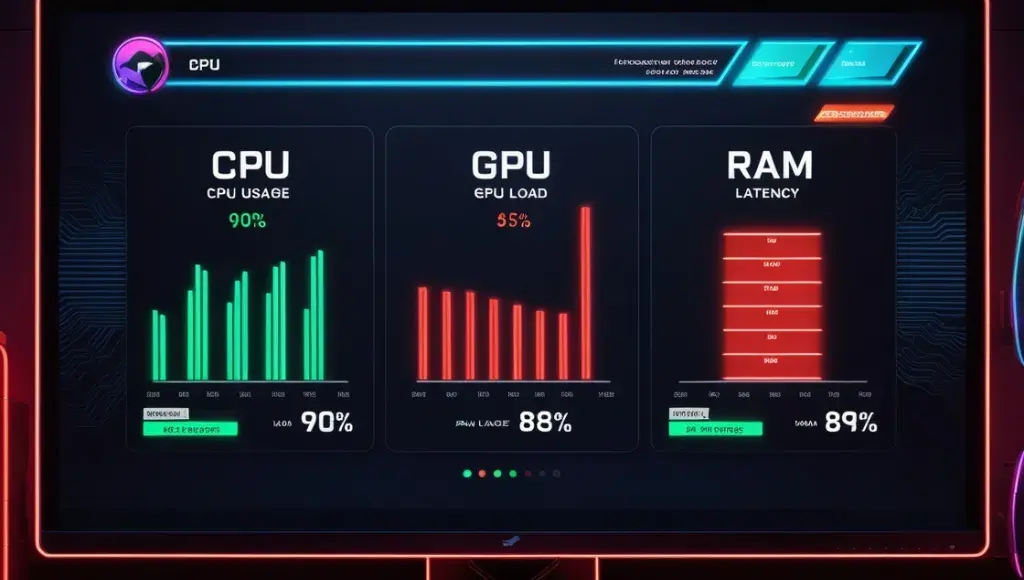
Monitoring CPU and GPU usage while gaming is the fastest way to confirm a bottleneck. Tools like MSI Afterburner or Windows Task Manager work well for this.
| CPU Usage | GPU Usage | Meaning | Recommended Action |
|---|---|---|---|
| ~100% | 50–70% | CPU bottleneck | Upgrade CPU or raise resolution |
| ~100% | 95–100% | Both maxed — demanding workload | Normal in heavy scenes |
| 50–70% | 95–100% | GPU bottleneck — healthy GPU-bound state | Normal at 1440p and 4K |
| 50–70% | 50–70% | FPS cap or V-Sync active | Disable frame cap or check power settings |
| ~100% | ~100% with low FPS | Thermal throttling or VRAM saturation | Check temperatures and VRAM usage |
Common CPU-GPU Pairings and Bottleneck Data
These are real bottleneck estimates for popular hardware combinations tested at common gaming resolutions.
| CPU | GPU | Resolution | Bottleneck % | Limiting Factor |
|---|---|---|---|---|
| Intel i5-8400 | RTX 4070 | 1080p | ~34% | CPU |
| Intel i5-8400 | RTX 4070 | 1440p | ~14% | CPU (minor) |
| Intel i5-8400 | RTX 4070 | 4K | ~3% | Balanced |
| Ryzen 5 3600 | RTX 4090 | 1440p | ~41% | CPU |
| Ryzen 5 2600 | RTX 4070 | 1440p | ~31% | CPU |
| Intel i9-13900K | RTX 4070 | 1440p | ~5% | Balanced |
| Ryzen 5 5600X | RTX 3060 | 1080p | ~8% | Balanced |
| Intel i3-10100 | RTX 3080 | 1080p | ~38% | CPU |
| Ryzen 7 7800X3D | RTX 4090 | 4K | ~3% | GPU |
| Intel i7-14700K | RTX 4080 | 1440p | ~4% | Balanced |
Best Balanced CPU and GPU Combinations in 2026
Based on benchmark data across thousands of tested configurations, these pairings offer excellent performance balance:
- Intel Core i5-13600K + NVIDIA RTX 4070 — Excellent 1080p and 1440p balance
- AMD Ryzen 7 5800X3D + AMD RX 6800 XT — Strong at 1440p
- Intel Core i7-14700K + NVIDIA RTX 4080 — 4K gaming powerhouse
- AMD Ryzen 9 7900X + AMD RX 7900 XTX — High-end 4K with near-zero bottleneck
- AMD Ryzen 7 7800X3D + NVIDIA RTX 4090 — Top-tier with ~3% bottleneck at 4K
- Intel Core Ultra 7 265K + NVIDIA RTX 5080 — Latest-gen balanced flagship build
Real-World Bottleneck Example
A professional gamer was playing Red Dead Redemption 2 at 4K on high settings but experiencing frequent FPS drops and stuttering. His configuration: Intel Core i3-13100 paired with an NVIDIA GTX 980.
After running a bottleneck check, results showed a 42% severe bottleneck with a system health score of just 37%. Both components were creating mutual limitations and preventing each other from performing at full capacity.
Following the upgrade recommendations, he switched to an Intel Core i7-13700K and NVIDIA RTX 4080. The recalculation showed 7% bottleneck and a 90% system health score. All previous issues — FPS drops, lag, stuttering — were completely resolved.
This example illustrates how a PC bottleneck calculator can save hours of troubleshooting and hundreds of dollars in unnecessary component purchases by pointing you to the exact upgrade that matters.
Fixes to Try Before Upgrading Hardware
Before spending money on new components, try these performance improvements. They are free and take minutes.
1. Enable XMP or EXPO in BIOS
Most RAM does not run at its rated speed by default. XMP (Intel) and EXPO (AMD) enable full RAM frequency. A DDR5-6000MHz kit running at 4800MHz by default is a hidden performance loss. Enabling XMP takes two minutes and can improve frame time stability significantly.
2. Switch to Dual-Channel RAM
Running a single RAM stick limits memory bandwidth. Installing a second matching stick in the correct motherboard slots enables dual-channel mode, improving CPU-to-memory data throughput.
3. Close Background Applications
Background apps — browsers, overlays, update services — consume CPU threads while gaming. Closing them before a session frees up processing capacity.
4. Check for Thermal Throttling
If your CPU or GPU is overheating, it automatically lowers clock speeds to reduce temperature. Use MSI Afterburner to monitor component temperatures. Clean dust from fans and heatsinks, replace dried thermal paste, and improve case airflow.
5. Update GPU Drivers
Outdated drivers reduce stability and can cause performance issues that appear as bottlenecks. Update via GeForce Experience (NVIDIA) or AMD Adrenalin (AMD).
6. Enable DLSS or FSR
If GPU bottleneck is identified, enabling DLSS (NVIDIA) or FSR (AMD) AI upscaling can increase effective FPS by 40–80% with minimal visual quality loss. This is the fastest fix for GPU-bound scenarios without hardware replacement.
Frequently Asked Questions About Bottleneck Calculators
Conclusion
Identifying and resolving PC bottlenecks is the single most effective way to maximize gaming performance without blindly spending money on new hardware. Whether your system is limited by a mismatched CPU, an aging GPU, insufficient RAM, or a slow storage drive, our Bottleneck Calculator 2026 pinpoints the exact source of the imbalance and tells you precisely what to fix.
A 34% CPU bottleneck at 1080p can silently cost you a third of your GPU’s potential before you even launch a game. Switching to 1440p, enabling XMP, or upgrading your processor can reclaim all of that performance. Use our free bottleneck check tool to analyze your system, get your bottleneck percentage, estimate FPS across popular titles, and make smarter upgrade decisions — in under 60 seconds.