
Keyboard Tester⌨️
What is a Keyboard Tester?
A keyboard tester is a web-based or software application designed to help users diagnose and verify the functionality of their keyboard keys. When you press a key on your keyboard, the tester visually indicates whether that key is being recognized by your computer. This tool is essential for identifying malfunctioning keys, sticky buttons, or connectivity issues before they become serious problems. Whether you’re troubleshooting a problematic keyboard, testing a newly purchased device, or simply curious about your keyboard’s responsiveness, a keyboard tester provides immediate, visual feedback without requiring any downloads or installations.
Why Use a Keyboard Tester?
Keyboard testers serve multiple important purposes in maintaining and troubleshooting your computer setup. First and foremost, they help you identify dead or unresponsive keys that may be failing due to wear, liquid damage, or manufacturing defects. Beyond simple functionality checks, these tools can reveal intermittent issues where keys only work sporadically, which can be incredibly frustrating during regular use. For gamers, keyboard testers are invaluable for checking key rollover capabilities and ensuring that multiple simultaneous key presses register correctly during intense gaming sessions. Additionally, if you’re purchasing a used keyboard or receiving a warranty replacement, testing all keys beforehand can save you from future disappointment.
Laptop Keyboard Tester
Laptop keyboards present unique challenges compared to their desktop counterparts. The compact design and integrated nature of laptop keyboards mean that individual keys cannot be easily replaced, making early detection of problems crucial. Laptop keyboards are particularly susceptible to damage from liquid spills, dust accumulation, and the general wear that comes from portable use. A laptop keyboard tester helps you identify issues specific to these devices, such as keys that have become stuck due to debris lodged underneath or keys that have lost their tactile feedback from repeated use.
PC Keyboard Testing
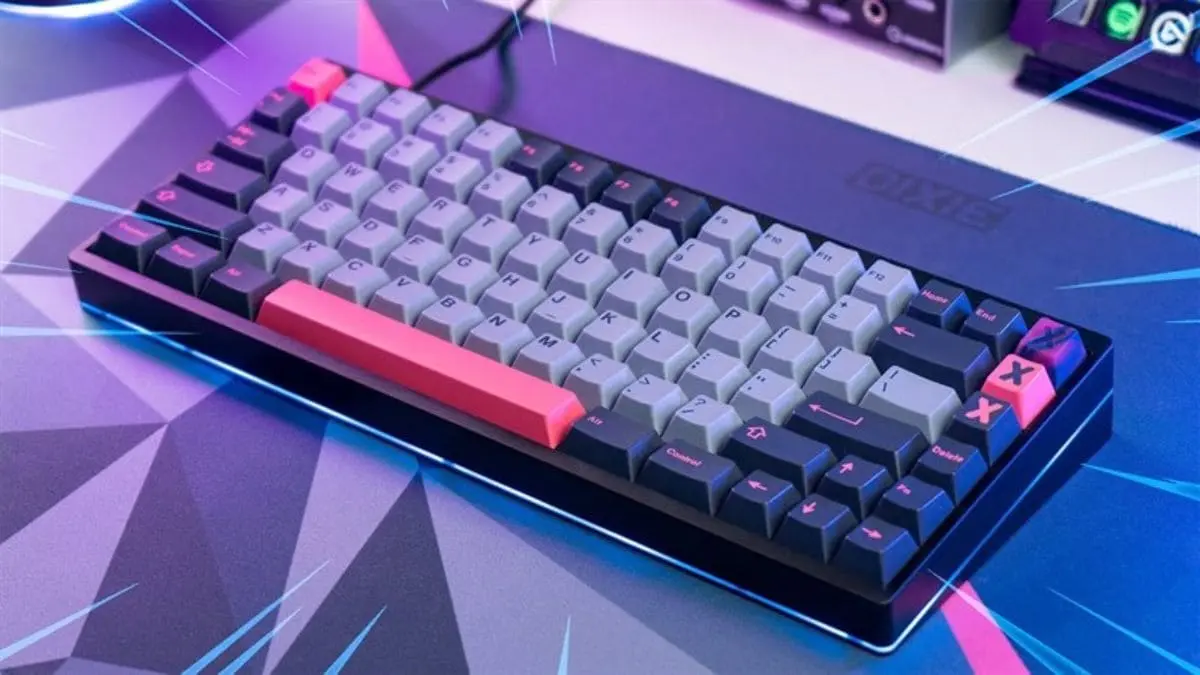
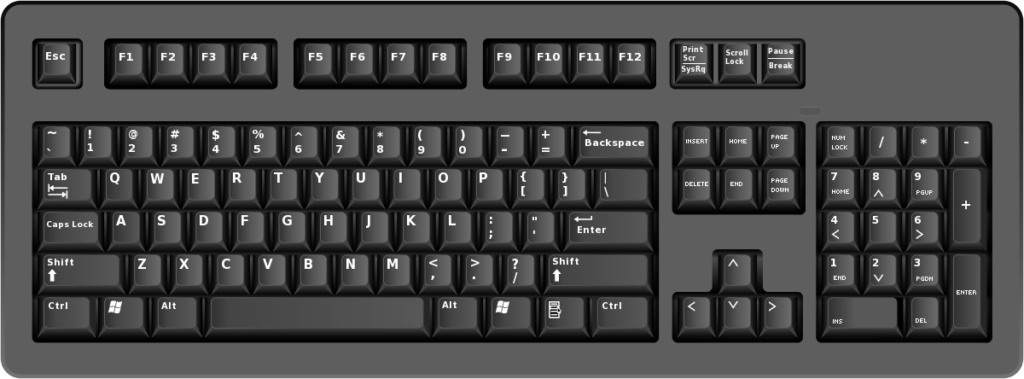
PC keyboards, whether wired or wireless, benefit greatly from regular testing. Desktop keyboards generally have more robust construction than laptop keyboards, but they still experience wear over time, especially in high-use environments. A PC keyboard tester allows you to verify every key on full-sized keyboards, including the numeric keypad, function row, and special media keys. For mechanical keyboard enthusiasts, testing tools can help identify when individual switches are beginning to fail, allowing for targeted repairs or replacements rather than discarding the entire keyboard.
How to Test Your Laptop Keyboard
Testing your laptop keyboard is straight forward and requires no special equipment. Simply navigate to a keyboard testing website using your laptop’s browser, and the interface will display a visual representation of your keyboard layout. As you press each key, it will light up or change color on the screen, confirming that your laptop is registering the input. Pay special attention to frequently used keys like the spacebar, Enter, and Shift keys, as these tend to wear out faster. Also test function keys, which on laptops often control brightness, volume, and other system settings. If you notice any keys not responding, try pressing them multiple times to determine if the issue is consistent or intermittent.
Common Laptop Keyboard Issues
Laptop keyboards commonly suffer from several specific problems. Keys may become sticky or unresponsive due to liquid damage, even from small spills that seem minor at the time. Dust and crumbs can accumulate under keys, causing them to stick or require extra pressure to register. The flat, low-profile design of laptop keys also makes them more susceptible to wearing out, especially on heavily used keys. Connection issues between the keyboard ribbon cable and motherboard can cause entire sections of the keyboard to fail. A keyboard tester helps you pinpoint exactly which keys are affected, which is crucial information if you need to seek professional repair.
Mechanical vs. Membrane Keyboards
The type of keyboard you’re testing matters when interpreting results. Mechanical keyboards use individual mechanical switches for each key, which can fail independently. These keyboards are generally more durable and can last for tens of millions of keystrokes, but when they do fail, you’ll notice distinct symptoms like keys that don’t register or require multiple presses. Membrane keyboards use a pressure pad system and rubber domes, which tend to wear out more uniformly. When membrane keyboards fail, you might notice mushiness, inconsistent actuation, or keys that require significantly more force to press. A keyboard tester helps you identify these issues regardless of keyboard type.
Wired vs. Wireless Keyboard Testing
When testing wireless keyboards, you need to consider additional factors beyond key functionality. Ensure your keyboard has fresh batteries or is fully charged before testing, as low power can cause intermittent key failures that aren’t actually hardware defects. Check the wireless connection stability by testing keys rapidly and in various combinations. Wireless interference from other devices can sometimes cause keys to miss or register incorrectly. For wired keyboards, connection issues are typically simpler: if keys aren’t registering, check the USB connection, try a different port, or test the cable for damage.
Advanced Keyboard Testing Features
Key Rollover and Ghosting
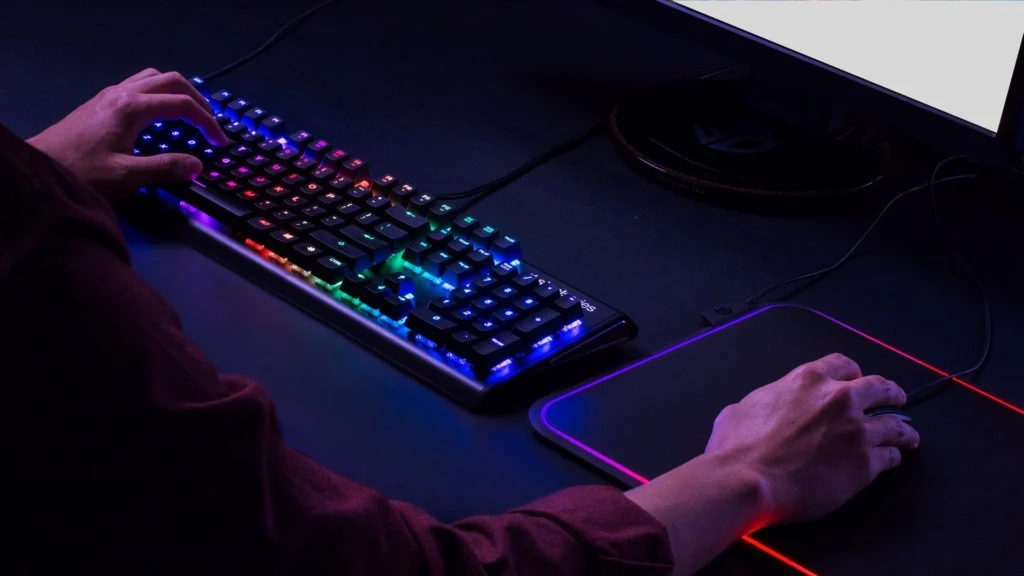
Advanced keyboard testers can check for key rollover capabilities, which determine how many keys can be pressed simultaneously and still register correctly. This feature is critical for gamers who need to press multiple keys at once during gameplay. N-key rollover (NKRO) means the keyboard can register every key press no matter how many are pressed simultaneously, while 6-key rollover is more common on standard keyboards. Ghosting occurs when a keyboard registers keys you didn’t actually press due to limitations in its circuit design. Testing for these issues helps you understand your keyboard’s limitations.
Response Time and Latency Testing
Some sophisticated keyboard testers can measure the response time between when you physically press a key and when your computer registers that input. For most users, this latency is imperceptible, but competitive gamers and professionals who require precise timing may want keyboards with minimal latency. Wireless keyboards typically have slightly higher latency than wired ones, though modern wireless technology has nearly closed this gap. Testing response time helps you determine if your keyboard meets your performance requirements.
Testing Special Keys and Functions
Beyond standard alphanumeric keys, modern keyboards include numerous special function keys that deserve testing. Media controls for play, pause, volume, and track skipping should all respond correctly. Function keys on laptops that control screen brightness, keyboard backlighting, or enable airplane mode need verification. Programmable macro keys on gaming keyboards should trigger their assigned functions. Windows keys, Alt keys, and other modifier keys must work in combination with other keys. A comprehensive keyboard test includes all these special functions.
Troubleshooting with Keyboard Testers
Diagnosing Partial Keyboard Failure
When only certain keys or sections of your keyboard stop working, a keyboard tester helps you identify patterns that point to specific problems. If an entire row or column of keys fails, this typically indicates a circuit board issue or damaged connection rather than individual key failure. On laptops, this might suggest a ribbon cable problem. If scattered keys across the keyboard fail randomly, you’re more likely dealing with individual key switch failures, liquid damage, or debris. Understanding these patterns helps you decide whether cleaning, repair, or replacement is necessary.
Software vs. Hardware Issues
A keyboard tester helps distinguish between software and hardware problems. If keys work in the tester but not in specific applications, you likely have a software conflict, key binding issue, or driver problem. If keys fail to register in the tester itself, you’re dealing with a hardware problem. Sometimes updating keyboard drivers, checking for conflicting software, or adjusting keyboard settings in your operating system can resolve what appears to be a hardware issue. Always test with a keyboard tester first to determine the true nature of the problem.
Frequently Asked Questions
What Our Users Say
“I was about to buy a new mechanical keyboard because my ‘E’ key felt weird. Used this tester and realized it was actually working fine—just needed a good cleaning under the keycap. Five minutes and some compressed air later, good as new. This tool literally saved me from an unnecessary purchase!”

Michael Chen
Software Developer“As an esports player, every key needs to be perfect. I test my keyboards weekly with this tool to catch issues before they cost me a match. Caught a dying spacebar switch last month before a tournament. Simple, fast, and reliable. Bookmark this immediately if you’re serious about gaming.”

Jessica Torres
Competitive Gamer“I work in tech support and I send this link to people constantly. No complicated instructions, no download, just press your keys and see if they light up. My 68-year-old mother used it to figure out her laptop keyboard had a bad ‘T’ key. Can’t get simpler than that.”